 gif-moments
한국어
Convert a video to GIF in your browser, without uploading
gif-moments turns a video into GIFs on your own device. Drop a file and it finds the moments worth keeping, cuts each one into a short GIF, and lets you download them one by one or all at once. Nothing is uploaded, and there is nothing to install or sign up for.
Open gif-momentsSteps
- Open the page in your browser. Open gif.flowoodz.com in a recent Chrome, Edge or Safari. If you opened the link inside another app, open it in your browser instead.
- Add a video. Drop a video on the page, or on a phone tap 'Tap to choose a video' and pick one from your library. You can add several at once. No video at hand? Press 'Try with a sample video'.
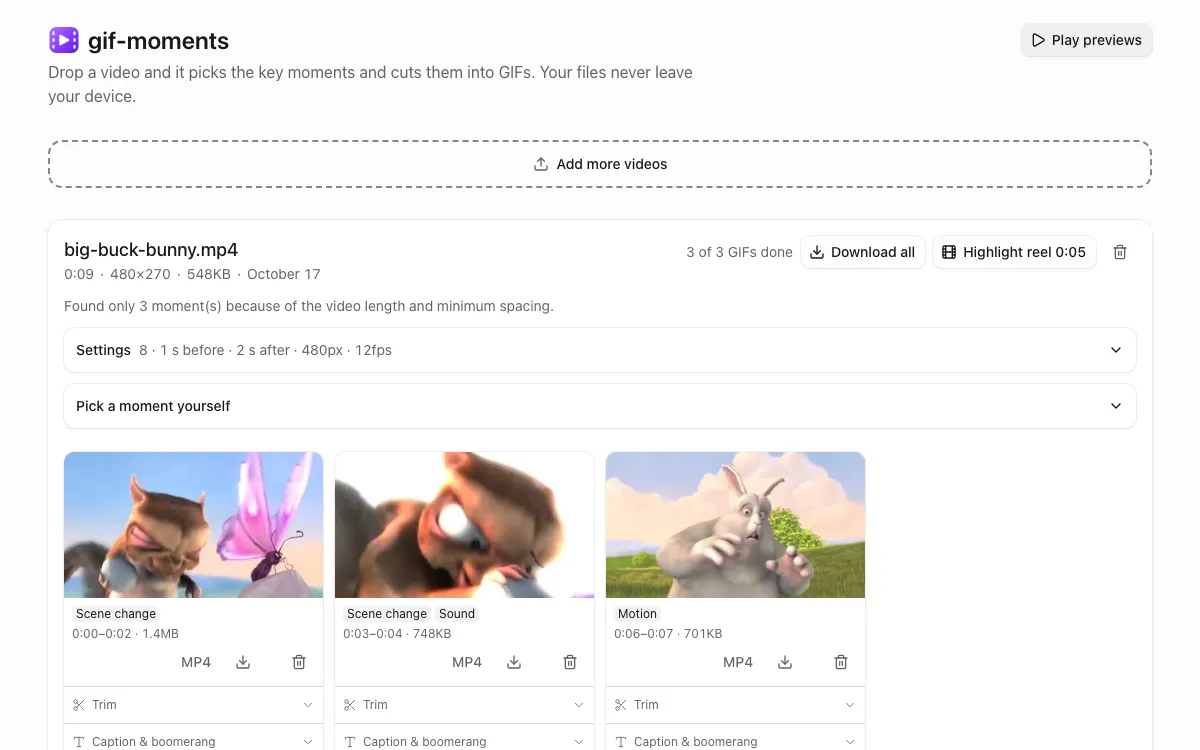
- Let the GIFs appear. The app finds the moments with the most scene change, motion and sound, and a GIF card appears for each one. Delete the cards you don't need.
- Adjust the settings. Open Settings to change the GIF count, Start and End, Width, Frame rate, Aspect ratio and Size limit. On a card, 'Caption & boomerang' adds a line of text under the GIF or makes it play forward and then backward.
- Download or share. Download a single GIF from its card, or press 'Download all' to get every GIF from that video as one ZIP. On phones, 'Share all' sends them to the share sheet, where you can save them or send them in a chat.
Why nothing gets uploaded
Most online converters either upload your video to a server or first download an ffmpeg.wasm core of tens of megabytes. gif-moments does neither. It uses WebCodecs, the video decoder built into the browser, so everything happens on your device and conversion starts as soon as the page loads.
The page's security policy only allows network requests to this site and a Cloudflare analytics beacon, so the browser has nowhere else to send your video. Your GIFs are saved in this browser and are still there when you come back.
Settings worth knowing
- GIF count, Start and End set how many moments to cut and how many seconds to keep around each (1 before and 2 after by default).
- Width is the long side in pixels, 480 px by default.
- Frame rate is 12 fps by default. Lowering it shrinks the file while keeping the picture size.
- Aspect ratio: Original, 1:1, 4:5 or 9:16. The crop follows where the motion is.
- Size limit can be 10 MB (Discord) or 5 MB (messengers). If a GIF comes out larger, the app makes it again at a lower frame rate and then a smaller width, and the card tells you if it still doesn't fit.
Each card also has 'Trim' to move the start and end of that GIF. Captions and boomerang apply to the GIF only, not to the MP4.
Supported formats and browsers
gif-moments opens whatever your browser can decode. MP4 (H.264) and WebM are the most reliable; MOV and MKV work when the codec inside is supported. HEVC (H.265) and AV1 depend on the codecs your operating system has. If a file can't be opened, only that file is marked as failed, with a hint to convert it to MP4 (H.264) or WebM.
You need a browser with WebCodecs: a recent Chrome, Edge or Safari. Older Firefox versions and some in-app browsers can't run it, and the page says so.
On iPhone
Open the page in Safari rather than inside a chat app. Videos recorded on an iPhone usually open as they are. If you see a message that the format can't be opened, set Settings > Camera > Formats to 'Most Compatible' (H.264) for new recordings, and keep iOS up to date. To save a GIF to Photos, press the card's share button and choose 'Save Image'.
Safari may clear a site's storage after 7 days without a visit, so save the GIFs you want to keep right away.
On Android
Use Chrome and tap 'Tap to choose a video' to pick from your gallery or files. 'Share all' hands every GIF to the share sheet at once.
Frequently asked questions
- Is my video uploaded to a server?
- No. Decoding, finding moments and GIF encoding all run in your browser. There is no server that receives video files.
- Do I need to install anything or sign up?
- No. Open the page and drop a video. There is no account.
- Is it free?
- Yes. Conversion doesn't run on a server, so there are no usage limits or paid tiers.
- Is there a length or file size limit?
- There is no server-side limit. How fast it runs and how much it can keep depend on your device and your browser's storage.
- Can I get an MP4 instead of a GIF?
- Yes. Each card has an MP4 button for the same span, made in the original quality up to 1080p, with sound if the original has it.
- Is the app in English?
- Yes. The app is shown in English when your browser language isn't Korean.