 gif-moments
한국어
Pull highlight GIFs and Shorts clips from a long video
gif-moments scores every part of a video by scene change, motion and sound, picks the highest-scoring moments and cuts each one into a GIF. From any card you can also download the same moment as an MP4, or as a 15- or 30-second 9:16 Shorts clip with sound. You don't have to scrub through the timeline, and the video stays on your device.
Open gif-momentsSteps
- Add the video. Drop the video on the page, or tap to choose one on a phone. You can add several at once; each video gets its own group of cards.
- Set the count and length. Open Settings and set the GIF count and how many seconds to keep before and after each moment (Start and End). By default a GIF runs from 1 second before the moment to 2 seconds after it.
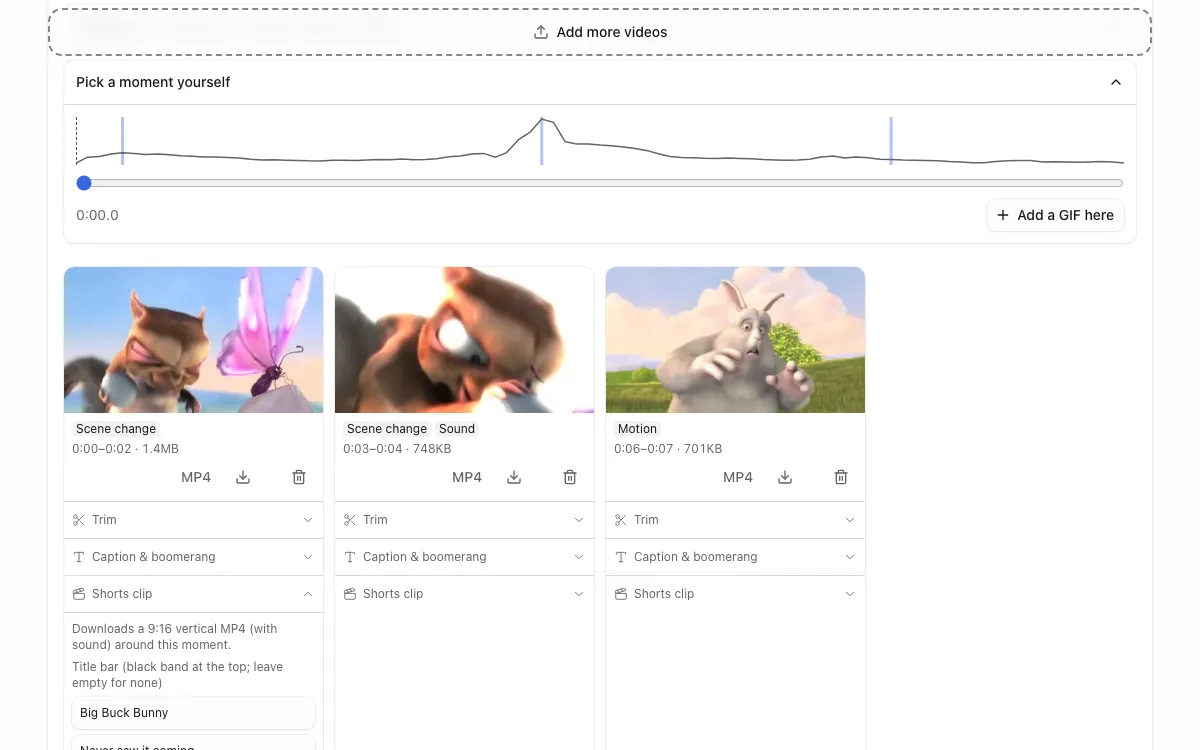
- Read the badges and delete what you don't need. Each card shows why it was picked: Scene change, Motion or Sound, plus Laughter, Cheering or Smile when the AI options are on. Delete the cards you don't want.
- Add a moment you missed. Open 'Pick a moment yourself' to see the score curve of the whole video with a line where each GIF sits. Move the slider to a time and press 'Add a GIF here'. The new card is marked 'Your pick'.
- Download Shorts clips, MP4s and the reel. On a card, open 'Shorts clip' and press 15 s or 30 s to download a 9:16 vertical MP4 around that moment. 'MP4' saves the same span as the GIF, and 'Highlight reel' next to the video name joins the finished moments in time order into one MP4 of up to 60 seconds.
How the moments are picked
The app compares each frame with the one before it (scene change), takes a moving average of that difference (motion), and checks how far the loudness in each 100 ms window rises above its surroundings (sound). The signals are standardized and added into one score curve, and its peaks become moments. A hard cut from editing would otherwise win every time, so one-frame spikes are removed before scoring, and a GIF that would cross a cut is pulled back to just before or after it.
Turn on 'Find laughter and cheering with AI' in Settings and an audio model (YAMNet via MediaPipe) adds laughter and cheering to the score. The model, about 5.4 MB compressed, is downloaded from this site the first time and runs on your device. If the option stays off, it is never downloaded.
'Find smiling faces with AI' does the same for faces. A face model (MediaPipe Face Landmarker, about 7.4 MB compressed with its runtime) looks at four frames a second and scores how much the mouth corners rise, so a big silent grin can become a moment with a 'Smile' badge. When a face is in view, a 9:16, 1:1 or 4:5 crop keeps the face in frame rather than following the hands.
Shorts clips that don't stop mid-word
A Shorts clip puts one third of its length before the moment and two thirds after it. If there is a cut within 1.5 seconds of the start or end, that edge moves to the cut. Without a cut, the edge moves to the quietest 0.1-second slice within 0.7 seconds, so narration is less likely to stop mid-word. When the stretch is loud throughout, as with nonstop talking or music, the edge stays put.
Under 'Title bar' you can type a small yellow keyword (up to 16 characters) and a big white headline (up to 24 characters), drawn on a black band across the top of the clip. Leave both empty for no band. The title bar goes only into Shorts clips, not into card MP4s or the reel.
The crop follows the action
When you choose 1:1, 4:5 or 9:16 in 'Aspect ratio', or make a Shorts clip, the crop doesn't just take the center. The app records where movement happens across the frame and places the crop where most of the motion is. GIFs, card MP4s, Shorts clips and each part of the reel follow the same rule.
MP4 and reel quality
Card MP4s, Shorts clips and the reel are made from the original video, not at the GIF width: up to 1920 px on the long side (1080p), never enlarged, with the original sound when there is one. The reel runs up to 60 seconds; past that, the highest-scoring moments go in first.
Frequently asked questions
- Is my video uploaded to a server?
- No. Analysis and GIF and MP4 encoding all run in your browser. If you turn on an AI option, only the model is downloaded from this site; your video stays on your device.
- How long does it take?
- On an M-series Mac (measured 2026-09-06), two 28-second 720p videos dropped together were analyzed and turned into 16 GIFs in 4.5 seconds. Speed depends on your device.
- What if the automatic picks are wrong?
- Delete those cards and add the moments you want from 'Pick a moment yourself'. Deleted moments stay deleted until you bring them back with the 'Restore … deleted moment(s)' button.
- Can I make a Shorts clip from a landscape video?
- Yes. Shorts clips are always 9:16, and the crop follows where the motion is. A 1080p landscape video gives a 608×1080 vertical clip.